
Go Live (Production Setup)
This section explains how to move your Falco integration from sandbox to production.
Going live requires a few mandatory steps, both on the integrator side and on the Falco client side. Please make sure all steps below are completed before using the production API.
1. Create an Application on the Developer Portal
To get started, you must create an application on the Falco developer portal:
Once logged in, you can create one or more Applications.
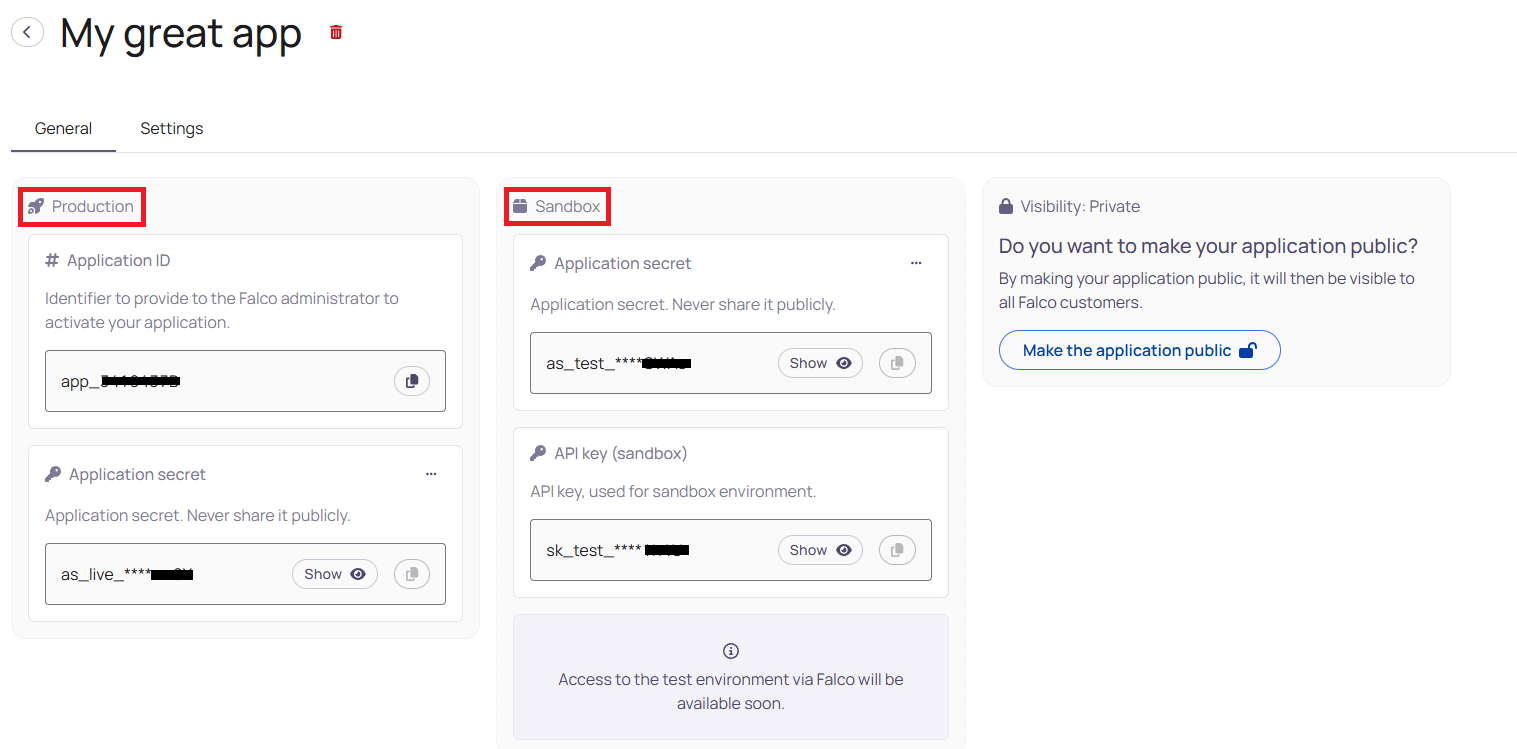
Each application is automatically provisioned with the following credentials:
Sandbox
- Application Secret (sandbox):
as_test_... - Sandbox environment with a test API Key:
sk_test_...
Production
- Application Secret (production):
as_live_...
ImportantAn API Key is not automatically generated for production.
This must be done by the Falco client (see step 4).
2. Sandbox vs Production Credentials
All API requests must include both:
- an Application Secret
- an API Key
Sandbox
Sandbox is straightforward:
- Both the Application Secret and API Key are provided directly to the integrator.
- You can immediately test your integration using the sandbox API.
⚠️ Sandbox limitations
The sandbox environment is currently API-only:
- Sandbox data is accessible exclusively via the API
- It is not possible to view or manage sandbox data directly in the Falco application UI
This means sandbox is intended strictly for technical integration and testing purposes, not for functional validation through the Falco interface.
Production
Production credentials are split:
-
The Application Secret (
as_live_...) is provided to the integrator. -
The API Key (
sk_live_...) must be created by the Falco client and linked to:- their organization
- your application
3. Make Your Application Public
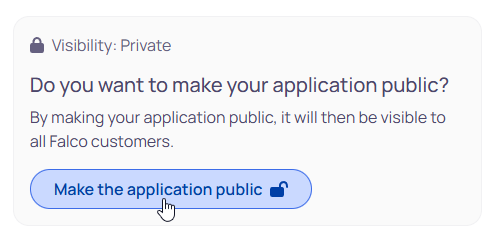
By default, newly created applications are marked as Private.
Private applications cannot be used by Falco customers in production.
Before going live, you must:
- Change the application visibility to Public
This allows Falco clients to select your application when creating an API key.
4. Production API Key Creation (Client Side)
End Customer RequirementsIn order to generate API keys the following requirements must be met:
- The user must be an administrator of the organisation.
- The organisation must have an active subscription with either an Expert Essential or an Expert Premium plan.
To use the production API, the Falco client must generate an API key from their Falco application.
The client will:
-
Log in to their Falco account on the desktop application
-
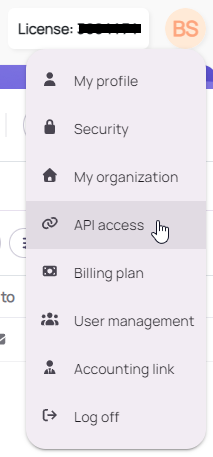
Navigate to API access by clicking on their initials in the upper right corner.
-
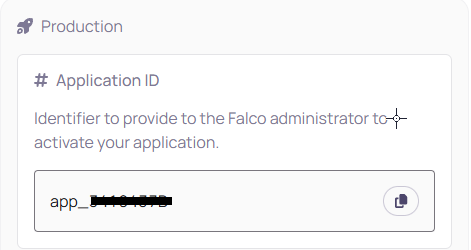
Select your public application based on the Application ID you will provide him/her (Example : app_XXXXXX)
-
Generate an API Key linked to their organization
This API key is then shared with you by the client and must be used together with your production Application Secret.
👉 Full step-by-step guide for end customers:
FR : https://faq.falco-app.be/connexion-api
NL : https://faq.falco-app.be/nl/api-verbinding
5. Switch to the Production API
Once you have:
- a production Application Secret (
as_live_...) - a production API Key (
sk_live_...) - a public application
You can switch your integration to the production API.
API Base URLs
| Environment | Base URL |
|---|---|
| Sandbox | https://api.sandbox.falco-app.be/ |
| Production | https://api.falco-app.be/ |
⚠️ Make sure you:
- use the production base URL
- send production credentials only
- never mix sandbox and production keys
6. Checklist Before Going Live
Before deploying to production, verify that:
- ✅ Application is Public
- ✅ Production Application Secret is configured
- ✅ Production API Key was generated by the client
- ✅ Production API base URL is used
- ✅ Sandbox credentials are no longer used
Updated 9 days ago